
01
01 · Prepare the artwork
Open the artwork in Illustrator and confirm that the cutting path matches the intended finished dimensions. Select the required cutting path before adding the job.
Documentation / Quick Start Guide
SIGA WEB IMPOSITION · v1.0.0Create your first Across × Flow layout.
Open the artwork in Illustrator and confirm that the cutting path matches the intended finished dimensions. Select the required cutting path before adding the job.
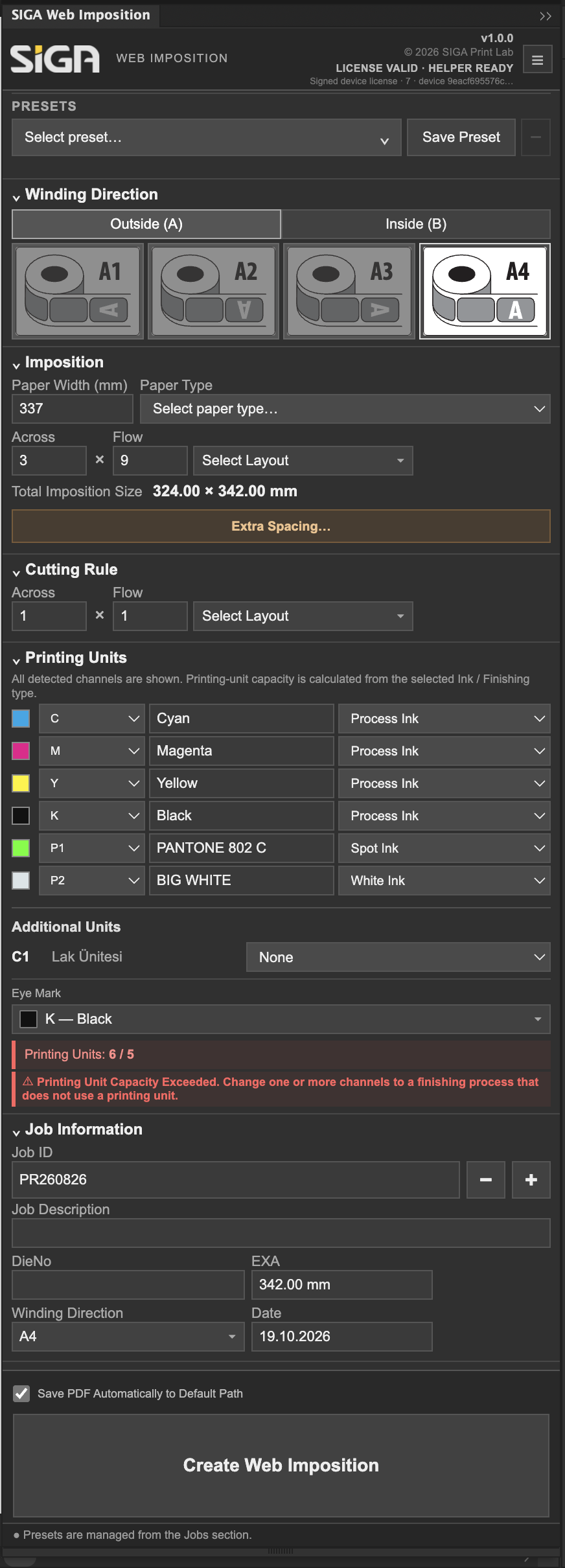
Select the required A or B winding direction. The panel shows visual orientation options; confirm the selection against the customer’s roll requirements.
Enter Paper Width, Across and Flow. Review Total Imposition Size and adjust Extra Spacing where required. Do not exceed machine limits.
Set the Cutting Rule arrangement. Check detected process, spot and white inks and resolve any printing-unit capacity warning before continuing.
Review Job ID, Job Description, DieNo, EXA, Winding Direction and Date. These fields help identify the generated production layout.
Select Create Web Imposition. Inspect artwork placement, bleed, marks, color separation and cutting-rule position before releasing the file for production.
Save the Illustrator document. If automatic PDF saving is enabled, verify the generated PDF at the configured destination.